> ## Documentation Index
> Fetch the complete documentation index at: https://help.edzo.com/llms.txt
> Use this file to discover all available pages before exploring further.
# Written Question Block
> Learn how to use Written Question blocks to collect typed responses from learners.
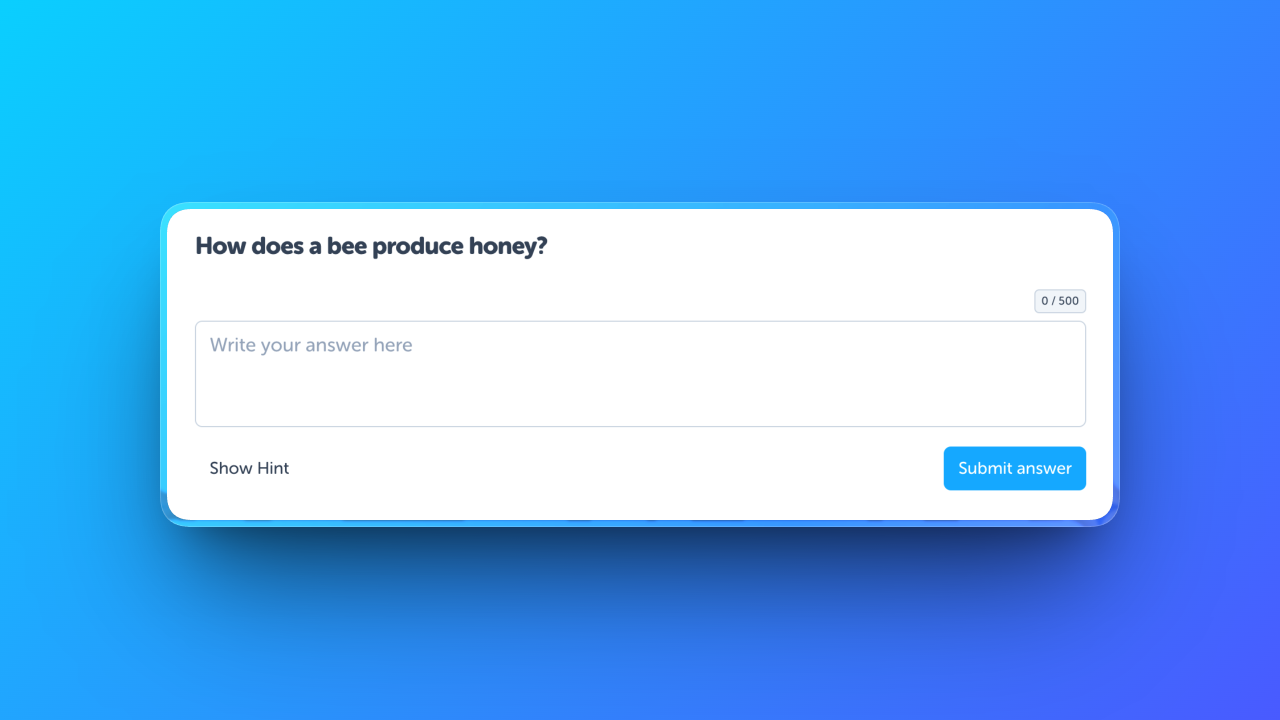 The **Written Question** block allows learners to type their own responses. Use it for short answers, longer explanations, or any activity where learners express understanding in their own words.
Written questions are flexible. you can configure them for single-word answers, sentences, or extended responses.
Written Question blocks can be automatically marked using flexible matching, exact matching, or AI-powered criteria marking.
## When to use Written Questions
Written questions work well for:
* Short answer responses (names, dates, single words)
* Sentence-level answers requiring specific phrasing
* Open-ended explanations assessed against criteria
* Fill-in-the-blank style questions using prefix and suffix
## Settings
### Input settings
The text displayed in the input before the learner writes their response.
The alignment of the input text: **left**, **center**, or **right**.
Text displayed before the input field. Useful for sentence starters like "The answer is" or currency "\$".
Text displayed after the input field. Useful for units like "cm" or "kg".
When enabled, the browser's spellcheck feature is active in the input field.
When enabled, learners can see how many characters they've typed.
The maximum number of characters learners can type (0–5000). Lower values create short-answer inputs; higher values create larger text areas.
## Answer and Marking
Written questions support three marking modes. Choose the one that best fits your question.
### Marking types
How the learner's response is compared to the accepted answers.
| Marking type | Description |
| ------------------ | ------------------------------------------------------------------------------------------------------------------------------------------- |
| **Flexible Match** | Handles variations in capitalisation, spacing, punctuation, accents, and number formats. Best for most short-answer questions. |
| **Exact Match** | The learner's response must match an accepted answer character-by-character. Use for case-sensitive or format-sensitive answers. |
| **AI Criteria** | Uses AI to assess the response against your marking criteria. Each criterion is worth 1 mark. Best for open-ended or explanation questions. |
For `Flexible Match` and `Exact Match`, add one or more accepted answers. The response is correct if it matches any of them.
For `AI Criteria`, add the criteria the learner's response must satisfy. The AI provides feedback without revealing the criteria to the learner.
### Accepted answers and criteria
Depending on the marking type:
* **Flexible/Exact Match**: Add one or more **accepted answers**. If the learner's response matches any answer, it is marked correct.
* **AI Criteria**: Add one or more **marking criteria**. The AI evaluates how well the response meets each criterion and awards marks accordingly.
## Response settings
Determines when the question is considered complete:
* **Correct**: The learner must answer correctly to proceed.
* **Answered**: Any response is accepted; correctness isn't required.
* **Optional**: The learner can skip the question entirely.
The number of attempts the learner can make before the question is locked (0–3). Set to **0** for unlimited attempts.
The experience points awarded for answering the question correctly (0–10).
## Tips for teachers and parents
**Best practices:**
* Use **Flexible Match** for most short-answer questions since it's forgiving of minor typos and formatting.
* Use **Exact Match** only when precision matters (e.g., spelling, passwords, codes, or scientific notation).
* Use **AI Criteria** for open-ended questions where there's no single correct answer.
* Add multiple accepted answers to account for valid variations (e.g., "6", "six", "6.0").
* Use **Prefix** and **Suffix** to provide context without cluttering the question stimulus.
The **Written Question** block allows learners to type their own responses. Use it for short answers, longer explanations, or any activity where learners express understanding in their own words.
Written questions are flexible. you can configure them for single-word answers, sentences, or extended responses.
Written Question blocks can be automatically marked using flexible matching, exact matching, or AI-powered criteria marking.
## When to use Written Questions
Written questions work well for:
* Short answer responses (names, dates, single words)
* Sentence-level answers requiring specific phrasing
* Open-ended explanations assessed against criteria
* Fill-in-the-blank style questions using prefix and suffix
## Settings
### Input settings
The text displayed in the input before the learner writes their response.
The alignment of the input text: **left**, **center**, or **right**.
Text displayed before the input field. Useful for sentence starters like "The answer is" or currency "\$".
Text displayed after the input field. Useful for units like "cm" or "kg".
When enabled, the browser's spellcheck feature is active in the input field.
When enabled, learners can see how many characters they've typed.
The maximum number of characters learners can type (0–5000). Lower values create short-answer inputs; higher values create larger text areas.
## Answer and Marking
Written questions support three marking modes. Choose the one that best fits your question.
### Marking types
How the learner's response is compared to the accepted answers.
| Marking type | Description |
| ------------------ | ------------------------------------------------------------------------------------------------------------------------------------------- |
| **Flexible Match** | Handles variations in capitalisation, spacing, punctuation, accents, and number formats. Best for most short-answer questions. |
| **Exact Match** | The learner's response must match an accepted answer character-by-character. Use for case-sensitive or format-sensitive answers. |
| **AI Criteria** | Uses AI to assess the response against your marking criteria. Each criterion is worth 1 mark. Best for open-ended or explanation questions. |
For `Flexible Match` and `Exact Match`, add one or more accepted answers. The response is correct if it matches any of them.
For `AI Criteria`, add the criteria the learner's response must satisfy. The AI provides feedback without revealing the criteria to the learner.
### Accepted answers and criteria
Depending on the marking type:
* **Flexible/Exact Match**: Add one or more **accepted answers**. If the learner's response matches any answer, it is marked correct.
* **AI Criteria**: Add one or more **marking criteria**. The AI evaluates how well the response meets each criterion and awards marks accordingly.
## Response settings
Determines when the question is considered complete:
* **Correct**: The learner must answer correctly to proceed.
* **Answered**: Any response is accepted; correctness isn't required.
* **Optional**: The learner can skip the question entirely.
The number of attempts the learner can make before the question is locked (0–3). Set to **0** for unlimited attempts.
The experience points awarded for answering the question correctly (0–10).
## Tips for teachers and parents
**Best practices:**
* Use **Flexible Match** for most short-answer questions since it's forgiving of minor typos and formatting.
* Use **Exact Match** only when precision matters (e.g., spelling, passwords, codes, or scientific notation).
* Use **AI Criteria** for open-ended questions where there's no single correct answer.
* Add multiple accepted answers to account for valid variations (e.g., "6", "six", "6.0").
* Use **Prefix** and **Suffix** to provide context without cluttering the question stimulus.